Charge your Samsung Galaxy XR headset
Keep your Samsung Galaxy XR headset powered up with these simple steps for charging the battery pack and using the headset while charging.
Charge your Samsung Galaxy XR headset
Caution
- Use only the Samsung-approved charger and the USB Type-C cable provided with the battery pack.
- Avoid charging if the connector is wet, as it may impact the headset's performance. Ensure it is completely dry before charging.
- The USB Type-C port on the Galaxy XR is for data backup and transfer only and should not be used for charging.
Charge the battery pack
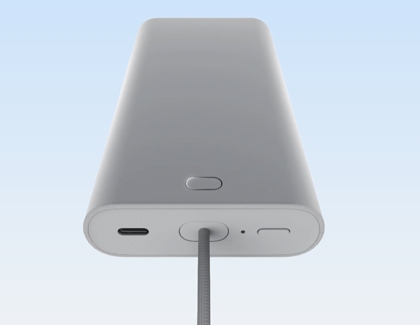
Before using your Samsung Galaxy XR headset, ensure the battery pack is fully charged.
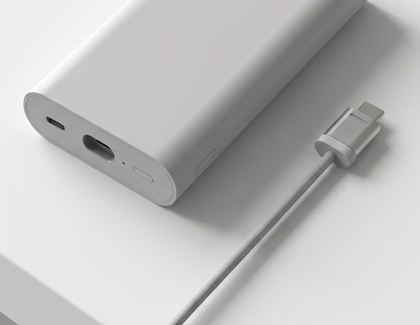
- Connect the USB-C Cable: Plug one end of the USB-C cable into the battery pack and the other end into the wall charger.

- Plug into a wall outlet: Connect the wall charger to a power source. The indicator light will be red while charging and turn green when fully charged.
- Disconnect the charging cable: After charging is complete, disconnect the charging cable from the battery pack and unplug the wall adapter from the wall outlet.

Read more
Read less
Power your headset while wearing it
Note
- If the battery status indicator blinks due, disconnect the power cable and try again after a short while.
- If the headset does not power on, disconnect and reconnect the cable.
- When the battery pack is connected, the headset powers on automatically. If turned off while connected, it can be restarted within 2 hours by pressing and holding the Top button. After 2 hours, use the battery level check button, connect a charger, or reconnect the cable. This prevents unnecessary battery drain.
- If the headset still does not turn on, press and hold the battery level check button on the pack for more than 7 seconds to reset the battery pack before trying again.

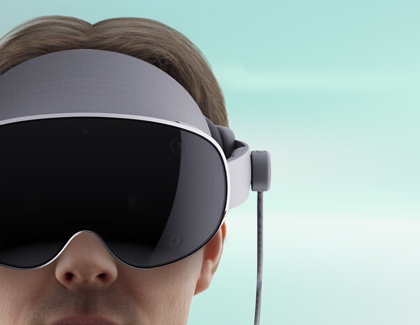
When wearing your headset, keep the battery pack close (e.g., in a pocket) and ensure the power cable is free from obstructions.
- Connect the battery pack: Insert the power cable firmly into the USB Type-C port located in the front center of the battery pack.
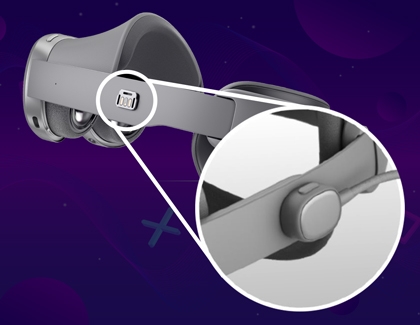
- Connect the headset: Align the other end of the cable with the power connector on the headset, then gently slide it downward until it clicks into place.
When the battery pack is running low, connect it to the wall charger using the USB-C cable. The headset will remain operational while charging. Once the battery pack is fully charged, disconnect it from the charger and unplug the charger from the wall outlet.
Read more
Read less
Disconnect the power cable

When not using your headset, disconnect the power cable to save energy and avoid wear on the connectors.
- On the headset side: Press the Release button on top of the cable, and then push the cable upward to disconnect.
- On the battery pack side: Press the USB release button on the battery pack, and then gently pull the power cable out of the charging port.
Read more
Read less
Turn off your headset

You can turn off your Galaxy XR headset in two ways:
- Buttons: Press and hold the Top button and Volume down button simultaneously until the power menu appears. Select Power off.
- Power menu: Press the Top button to open the Launcher, and then select the Quick setting icon from the panel. Select the Power icon, and select Power off.
Read more
Read less
Charging best practices
Here are some essential tips to help you maximize your headset's battery life and ensure safe charging:
- Use compatible accessories: Always use chargers, power cords, and cables specifically designed for your headset to ensure optimal performance and safety.
- Avoid metal and magnetic materials: Keep your headset away from metal objects like coins and magnetic materials such as credit cards to prevent reduced charging efficiency or potential damage.
- Handle cords with care: Avoid bending or damaging the power cord, as this can lead to safety hazards or charging issues.
- Inspect before use: Never use damaged power cords, plugs, or loose electrical sockets. Always check for any signs of wear or damage before plugging in.
- Disconnect properly: When disconnecting the power cord, gently unplug it instead of pulling it excessively to avoid damage.
- Keep dry: Avoid touching the headset, power cords, plugs, or sockets with wet hands or in damp environments to prevent electrical hazards.
Read more
Read less
Recommended Articles
Samsung Galaxy XR headset setup
Samsung Galaxy XR headset setup Setting up your Samsung Galaxy XR headset unlocks a world of immersive experiences, from augmented reality (AR) to virtual reality (VR). This guide provides clear, step-by-step instructions to help you configure the headset for seamless operation. Whether you're a beginner or an experienced user, these tips ensure yo
How to properly wear your Samsung Galaxy XR headset
How to properly wear your Samsung Galaxy XR headset The Samsung Galaxy XR headset offers an immersive experience, but proper setup and usage are essential for the best results. This guide will walk you through the process of wearing your headset, using prescription inserts, powering it up, and storing it safely. How to properly wear your Samsung Ga
Unbox your Samsung Galaxy XR
Unbox your Samsung Galaxy XR Welcome to the world of extended reality with your new Samsung Galaxy XR headset! This guide will walk you through the items included in the box and provide essential setup tips to get started. Unbox your Samsung Galaxy XR In-box items Here's a list of what you'll find inside the packaging: Galaxy XR headset: The main d
We're here for you
Contact Samsung Support
Contact us online through chat and get support from an expert on your computer, mobile device, or tablet. Support is also available on your mobile device through the Samsung Members App.


