How to connect a soundbar to your Samsung TV using HDMI ARC
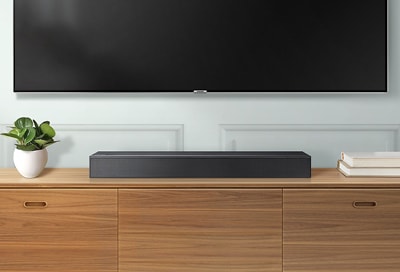
If your TV supports ARC (Audio Return Channel), you can connect your TV and soundbar using an HDMI cable, so audio from your connected devices will play on the soundbar. ARC is easy to use, and you will enjoy excellent sound quality.
Note: The provided information refers to TVs sold in Canada. The available settings and options may differ for devices sold in other countries.
Connecting your soundbar to a TV through HDMI will give you the best audio because HDMI cables transmit sound digitally. There are 2 ways to connect your soundbar with HDMI:
- You can directly use the HDMI ARC or HDMI eARC port of your TV to connect the soundbar.
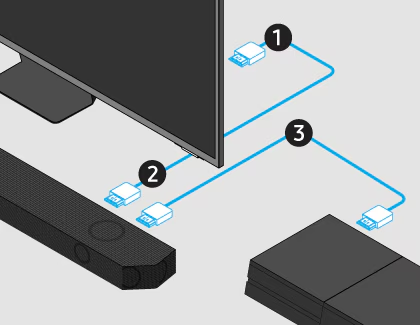
- You can connect an external device to your soundbar (like a video game system) and then connect the soundbar to the TV using the ARC (Audio Return Channel) or eARC (enhanced Audio Return Channel) port.
ARC or eARC is the way to go if you want great sound from streaming apps on your TV and a soundbar. Meanwhile, the second method will give you the best possible sound from external devices you regularly use.
Note: The following types of HDMI cables are recommended: a High Speed HDMI cable with Ethernet and a Premium High Speed HDMI cable. The amount of HDMI ports on your soundbar may vary by model.
Connect your soundbar with HDMI ARC/eARC
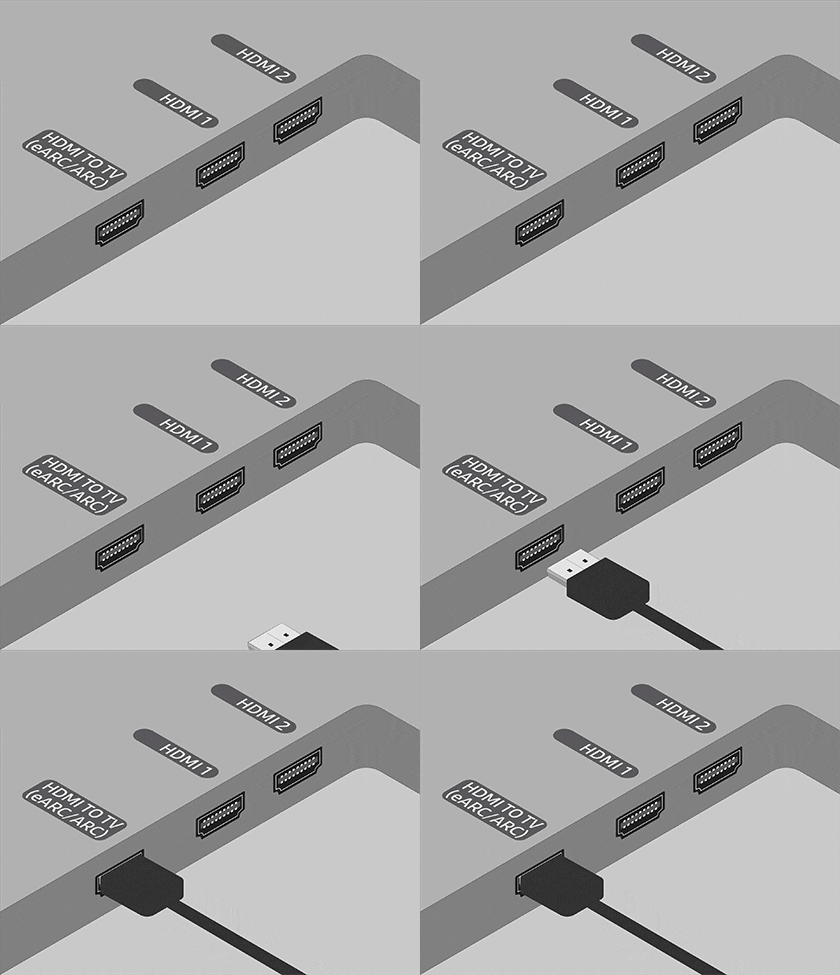
Note: To use eARC, you will need to activate the eARC function on your TV. Navigate to and select Settings, then select All Settings. Select Sound, and then select Expert Settings. Select HDMI-eARC Mode, and then select Auto.
HDMI ARC (Audio Return Channel) allows certain TVs and soundbars to transfer audio back and forth using one HDMI cable. In other words, you can use the HDMI port as both an audio input and output. The only downside is that your soundbar is going to take up a port on your TV that would normally connect an external device.
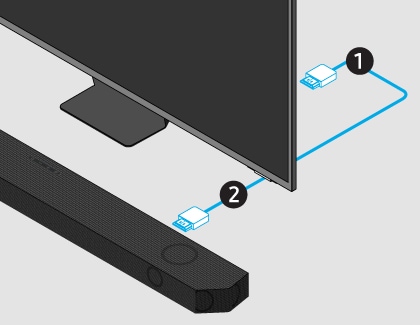
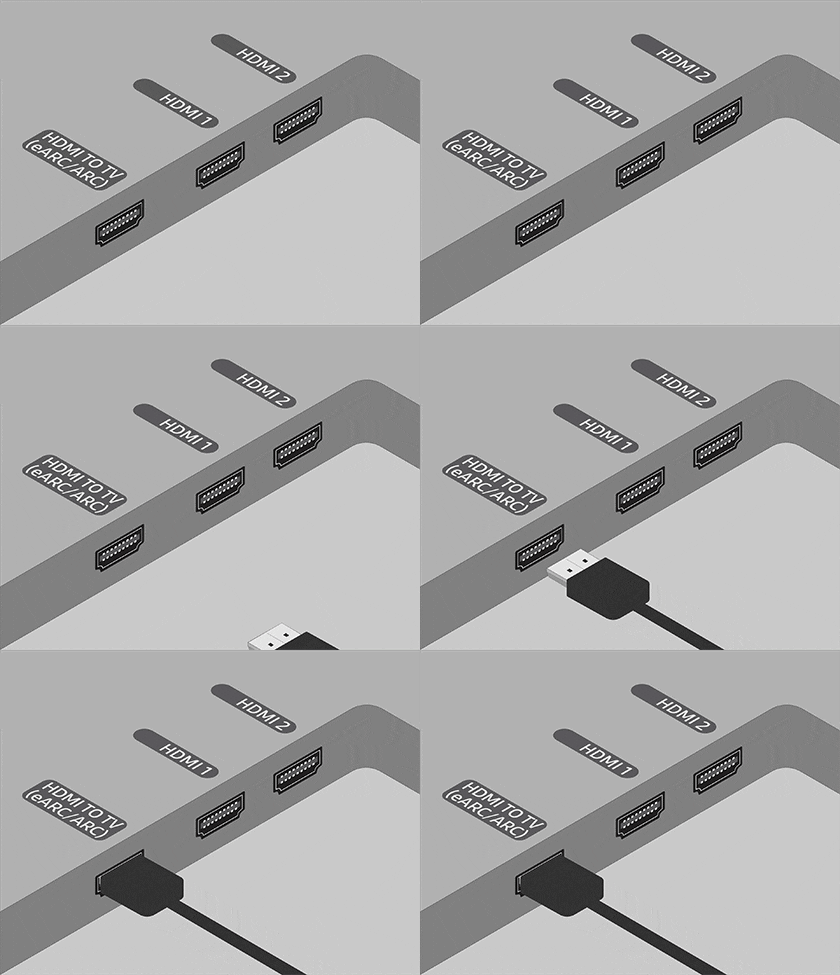
To set up HDMI ARC, power on your TV and soundbar, and then follow the instructions below:
Note: The location of the ARC or eARC port may vary depending on your TV model.
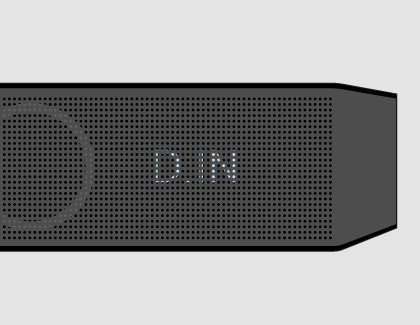
Connect your soundbar and an external device using HDMI

Everything should be working now, but let's take it a step further and make this setup the best it can be:
- Make sure Anynet+ (HDMI-CEC) is enabled on your TV. This will make the TV turn on when the device and soundbar are turned on. If you have a Samsung TV, navigate to Settings, select All Settings, and then select Connection. Select External Device Manager, and then select Anynet+ (HDMI-CEC). Check the user manual for your TV if these instructions don't match, or if you don't have a Samsung TV.
- Lastly, you should enable HDMI-CEC settings on your external device and set up universal control on your TV. To set up the HDMI-CEC settings on your external device, you will need to check out the user manual for your device.
Note: If your external device is 4K compatible, you need to make sure the soundbar supports 4K pass-thru. Samsung Q series support 4K pass-thru, so you should be good to go if you have these models. The HDMI IN port of a Samsung soundbar can only support up to 4K (4:4:4 8 bit).
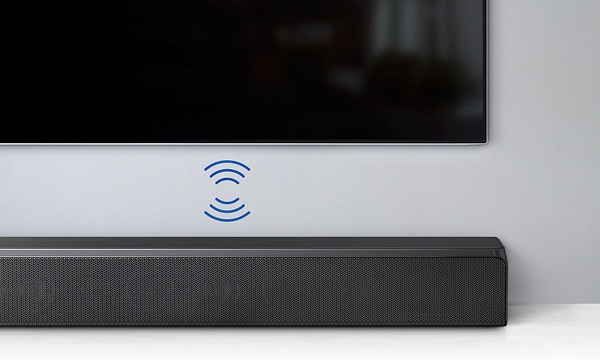
- If you have no audio when using ARC, press the Anynet button on your soundbar’s remote once and then twice to toggle the Anynet function on or off. Anynet must be set to ON for ARC to work.
- The TV audio settings must be set to external speaker to receive audio through the soundbar. For information on changing this setting, please consult the user manual for your TV.
- When using ARC, you must power off the TV first and then the soundbar will power off automatically. If you power off the soundbar first, the TV will stay on and the audio will be output through the TV speakers. You can use either the TV or soundbar remote to power off both devices. This is only available when the soundbar is connected to a Samsung TV.

If you’re running into glitches, you can power cycle your devices. Believe it or not, many minor issues with any device can be fixed with a power cycle. Think of it like a little power nap that gets the devices going again in a snap. Follow the steps below:
Updating the firmware on your soundbar keeps everything in working order. Follow the steps below to update your firmware:
If your issue is not solved after trying the steps above, contact us.
Additional resources:

Thank you for your feedback!
Please answer all questions.
RC01_Static Content : Hide call number function