Sounds, vibrations and notifications on your Samsung Galaxy devices
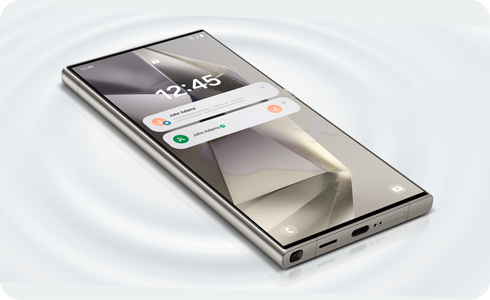
When you receive a notification, such as a message, email, or phone call on your Galaxy devices, there are several ways you can be alerted. Plus, you have the option to customise these notification options and styles to suit your preference.
Note: Images used are simulated for illustrative purposes and the actual UI and setting method may vary by OS version, device model, region, etc.
You can set up sounds and vibrations for incoming calls and notifications. Additionally, you can enable the ‘Vibrate while ringing’ option in settings to receive both sound and vibration alerts.
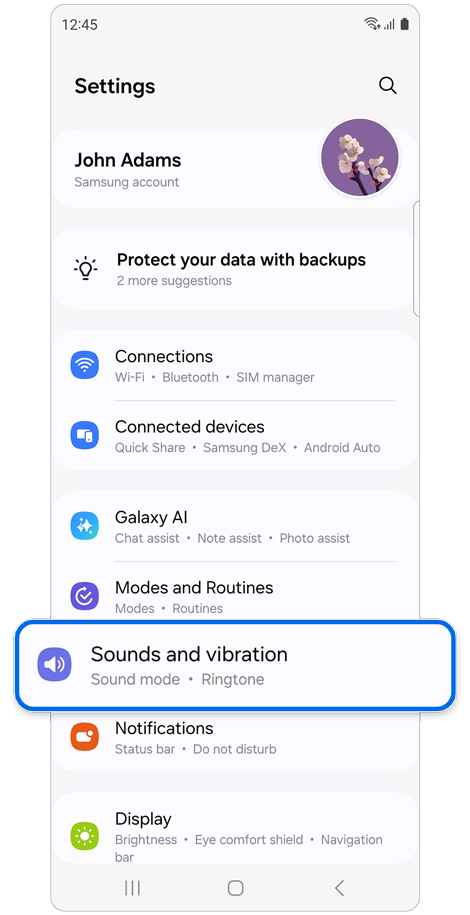
Step 1. Open Settings > Select Sounds and vibration.
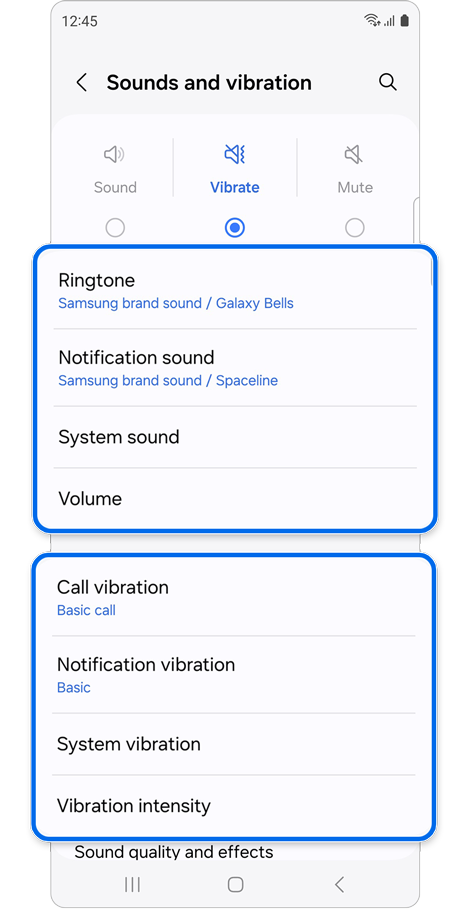
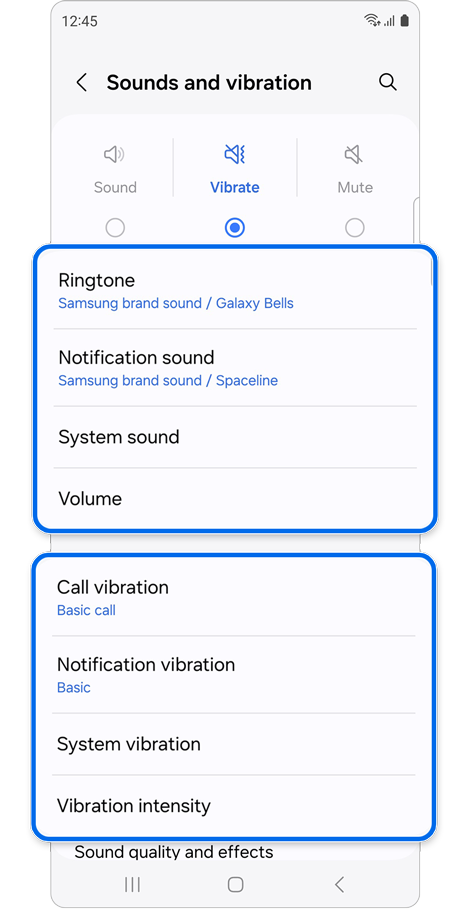
Step 2. Set your sound and vibration settings.
Sound mode
- Ringtone: Select your preferred ringtone and set the volume for incoming calls. You can also enable the ‘Vibrate while ringing’ option here.
- Notification sound: Manage the sounds for your notifications.
- System sound: Adjust the sounds for display interactions, keypads, keyboards, screen lock/unlock, charging and touch haptics.
- Volume: Control the volume levels of your ringtone, media, notifications, and system sounds.
Vibration mode
- Call vibration: Control the vibration intensity and pattern for incoming calls.
- Notification vibration: Choose your preferred vibration pattern for incoming notifications.
- System vibration: Control vibration intensity and feedback for touch interactions, dialing keypads, keyboards, navigation gestures, charging, and camera feedback.
- Vibration intensity: Adjust the vibration intensity for calls, notifications, system sounds, and media. You can also enable the ‘Vibrate while ringing’ option here.
Other settings


- Sound quality and effects: Enable Dolby Atmos feature for enhanced audio, boost dialogue for clearer voices in videos, normalise loudness to maintain consistent volume, and adapt sound for a tailored listening experience.
- Separate app sound: Enable this feature to automatically play media from apps you select on a separate device such as speakers or headphones.
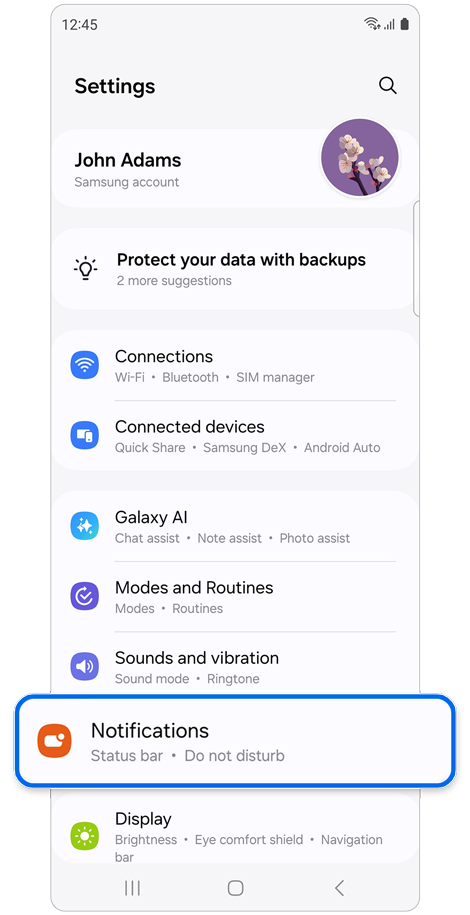
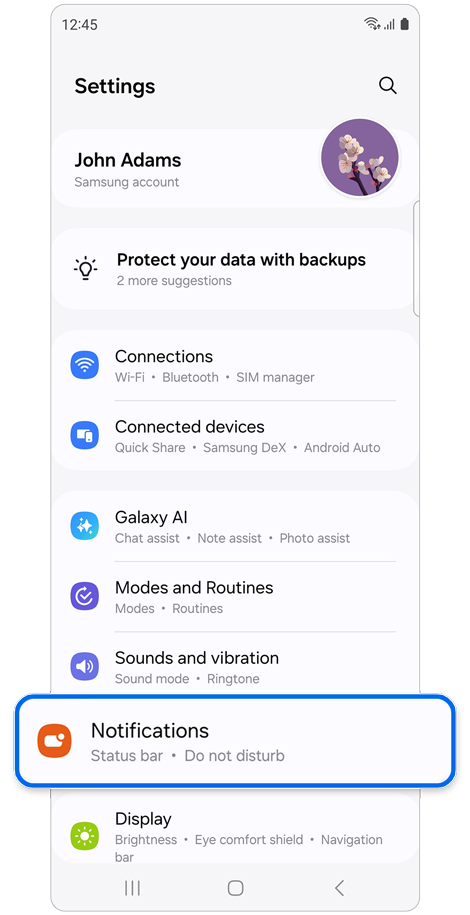
Step 1. Open Settings > Select Notifications.
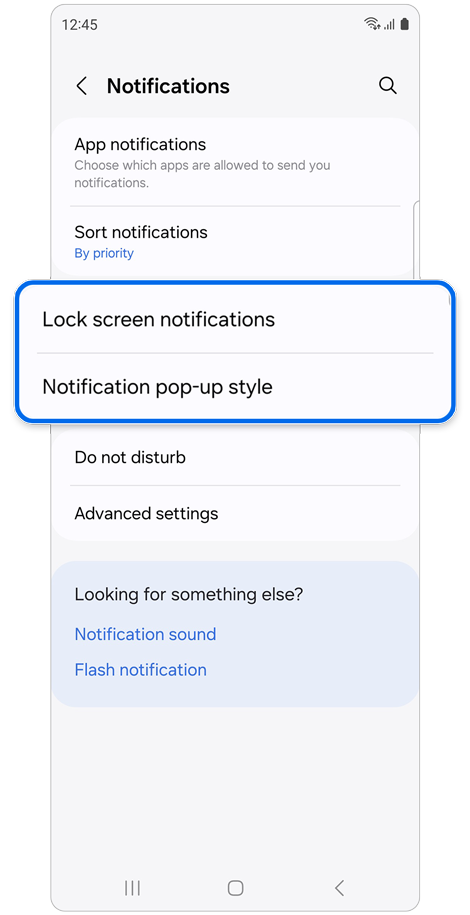
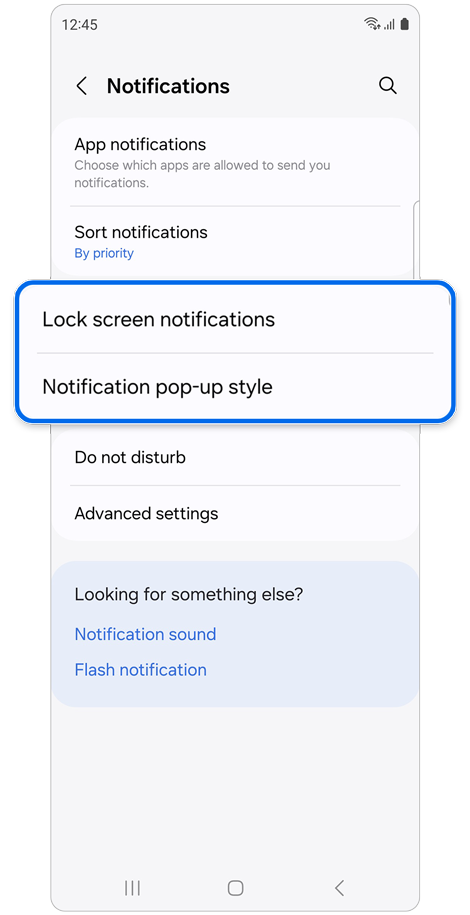
Step 2. Customise your Lock screen notifications and Notification pop-up styles.
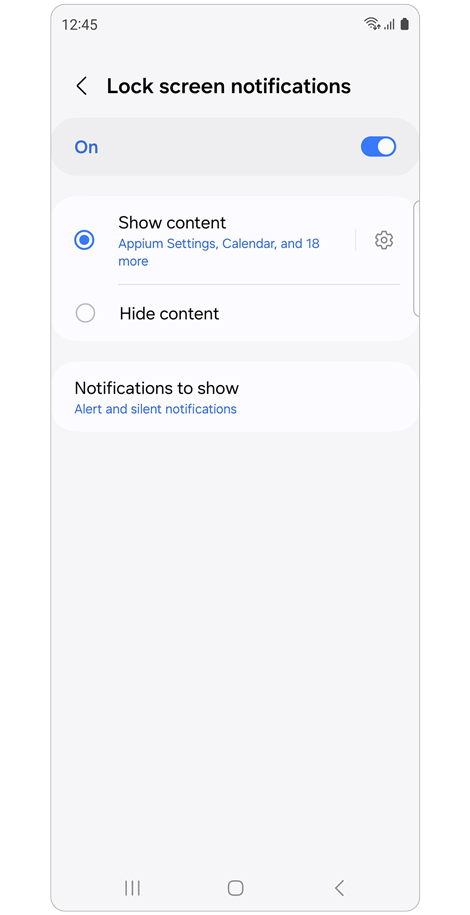
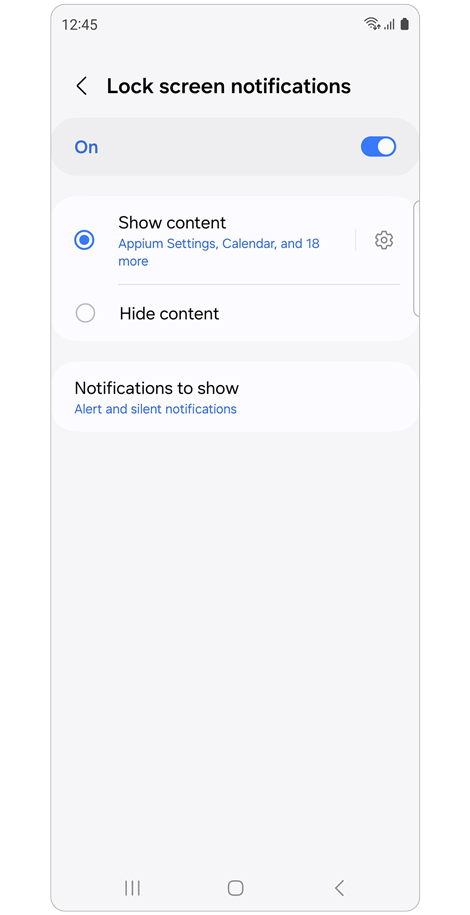
Lock screen notifications: Enable or disable lock screen notifications and customise which app notifications to display on your lock screen.
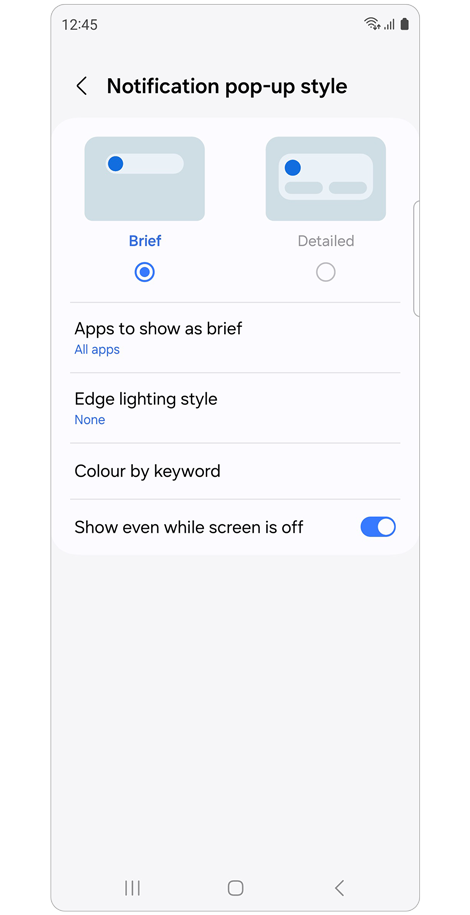
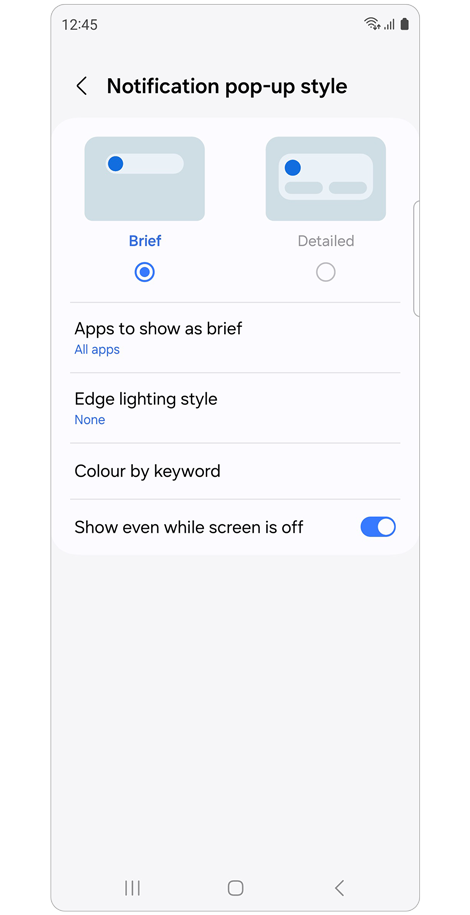
Notification pop-up style: Select either brief or detailed pop-up notifications, and customise the apps, lighting effects, and keyword colours to further personalise your notification settings.
If notifications are not appearing on your Samsung Galaxy, certain settings may be preventing them from displaying as expected. Check the options below to make sure notifications are enabled and that nothing is preventing them from appearing.
1. Check App notification settings
Check whether notifications are allowed for the app that is not showing notifications.


01. Tap Settings.


02. Select Notifications.


03. Select App notifications.


04. Tap the app that is not showing notifications.


05. Check that Allow notifications, Sound and vibration, and notification display options such as Notifications pop-up are allowed.
2. Check App notification categories
Check each notification category for the app that is not showing notifications.
[Turn on Manage notification categories for each app]
Before checking notification categories, turn on category management in Advanced settings.

01. Tap Settings.

02. Select Notifications.


03. Select Advanced settings.


04. Turn on Manage notification categories for each app.
[Check notification categories]
After turning on category management, check the notification settings for each category.
01. Tap Settings.
02. Select Notifications.

03. Select App notifications.

04. Tap the app that is not showing notifications.


05. Select Notification categories.


06. Check that notifications are allowed for each category.


07. Tap Notification category to check detailed settings such as Allow notifications, Alert, and Show as pop-up.


08. Tap Sound and check notification volume settings for the category.
3. Check whether the app is in Deep sleeping status
If an app is in Deep sleeping status, notifications may not appear. Check whether the app is marked as Deep sleeping in the app notification list, then allow notifications if needed.
01. Tap Settings.
02. Select Notifications.
03. Select App notifications.


04. Check whether the app is marked as Deep sleeping, then allow notifications for the app if you want to receive notifications.
4. Turn off Do not disturb
If Do not disturb is turned on, you may not receive notifications. Check the setting and turn it off if needed.
01. Tap Settings.
02. Select Notifications.


03. Tap Do not disturb.


04. Check whether Do not disturb is turned on, then turn it off.
If notifications are appearing but you do not hear a sound, certain sound or notification settings may be preventing the alert from playing. Check the options below to make sure notification sounds are enabled and the volume is set appropriately.
1. Check the notification volume
If the notification volume is too low, notification sounds may not be heard even when notifications appear on the screen.
01. Tap Settings.


02. Select Sounds and vibration.


03. Select Volume.


04. Increase the Notifications volume.
2. Check the Mute all sounds setting in Accessibility
If the Mute all sounds feature is turned on, device sounds may not play. Turn this setting off to allow notification sounds.
01. Tap Settings.


02. Select Accessibility.


03. Select Hearing enhancements.


04. Turn off Mute all sounds if it is on.

Thank you for your feedback!
Please answer all questions.
RC01_Static Content : Hide call number function